How to Convert a PDF Bank Statement to QBO for QuickBooks
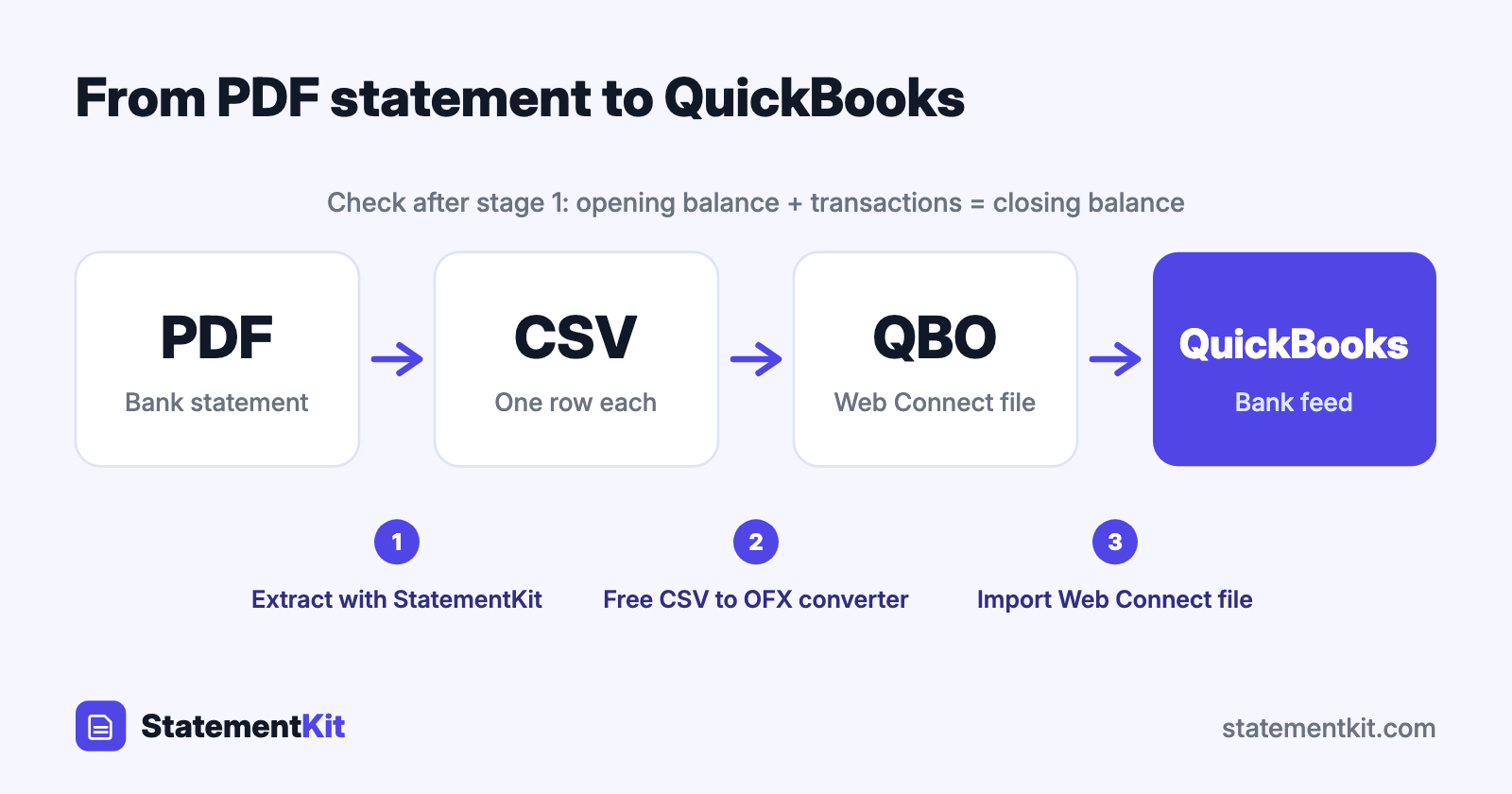
QuickBooks imports bank activity from data files, and a PDF statement is a page layout meant for reading. To get the transactions from a PDF into QuickBooks, the data has to be lifted out of the page first and then written in a format QuickBooks accepts. For QuickBooks Desktop bank feeds, that format is the .qbo Web Connect file.
The route has two stages: PDF to CSV, then CSV to QBO. Each stage takes a couple of minutes.
When this route makes sense
- You are catching up on months or years of bookkeeping, and the bank’s QuickBooks download only reaches back 90 days.
- The account is closed, and PDF statements are the only record left.
- A client sent you statements as PDFs.
- The bank or card issuer offers PDF statements and nothing else.
If your bank still offers a QuickBooks or Web Connect download for the dates you need, use that. It is the shortest path.
Stage 1: Extract the PDF to CSV
The goal of this stage is a CSV with one transaction per row and columns for date, description, and amount.
- Download the statement from online banking as a PDF. A PDF downloaded from the bank contains real text, which converts cleanly.
- Upload it to StatementKit. It reads the transaction table, including rows that wrap onto a second line and tables that continue across pages.
- Review the extracted rows and download the CSV.
Before moving on, check the CSV against the statement:
- The first and last transaction dates match the statement period.
- The number of rows matches the number of transactions.
- Opening balance plus all amounts equals the closing balance printed on the statement.
That third check catches a missed row or a flipped sign in seconds, and it is worth doing every time.
Stage 2: Convert the CSV to QBO
- Open the free CSV to OFX converter. It runs in your browser and keeps the file on your computer.
- Drop in the CSV and map the date, description, and amount columns.
- Choose bank account or credit card.
- Download the result as QBO.
QuickBooks Desktop checks each Web Connect file for an Intuit bank ID. Open the downloaded file in a text editor and add your bank’s INTU.BID line after the closing </FI> tag. How to convert CSV to QBO shows where to find the ID and exactly where the line goes.
Stage 3: Import into QuickBooks
QuickBooks Desktop
- Back up the company file.
- Choose File > Utilities > Import > Web Connect Files and select the
.qbofile. - Link it to the right bank account.
- Review the transactions in Banking > Bank Feeds > Bank Feeds Center, match or categorise them, and add them to the register.
QuickBooks Online
QuickBooks Online accepts CSV, so you can stop after stage 1. Go to Transactions > Bank transactions, choose Upload from file, select the CSV, and map the columns. The QuickBooks import guide covers each screen.
Working through a backlog
For a year of statements, a steady routine keeps the work predictable:
- Convert the statements in date order, oldest first.
- Keep one file per statement period, named with the account and month, such as
checking-2026-03.qbo. - Import one month, reconcile it to the statement’s closing balance, then move to the next.
Reconciling month by month means any difference is confined to a single statement, which makes it quick to find.
Scanned statements
A statement that was printed and scanned is a picture of text. It needs optical character recognition before any data can be extracted. StatementKit currently reads text-based PDFs, the kind you download from online banking, and support for scans and photos is in progress. Where you have the choice, download the original PDF from the bank. Most banks keep several years of statements online.
PDF to QBO in one view
| Stage | Input | Output | Tool |
|---|---|---|---|
| 1 | PDF statement | CSV | StatementKit |
| 2 | CSV | QBO | CSV to OFX converter |
| 3 | QBO | Bank feed transactions | QuickBooks Desktop |
Frequently Asked Questions
Can QuickBooks import a PDF bank statement directly?
QuickBooks attaches PDFs to transactions as supporting documents, and its bank feed reads data files: QBO for Desktop, and CSV, QBO, QFX, or OFX for Online. Converting the PDF gives the bank feed what it reads.
How accurate is PDF extraction?
Text-based PDFs extract reliably because the characters are already in the file. The balance check in stage 1 confirms the result: when opening balance plus transactions equals the closing balance, every row is accounted for.
Does this work for credit card statements?
Yes. Extract the card statement to CSV, then choose credit card in the converter so the file is written as a card account. Charges import as money out and payments as money in.
What about QuickBooks Desktop for Mac?
QuickBooks for Mac imports Web Connect files through File > Import > From Web Connect, and the same .qbo file works.
Have a PDF statement and need a data file?
StatementKit reads the transactions in a bank statement PDF and gives you a clean CSV or Excel file. The free plan covers 3 statements a month.
Convert Your First Statement Free