How to Convert a PDF to CSV: 4 Methods Compared
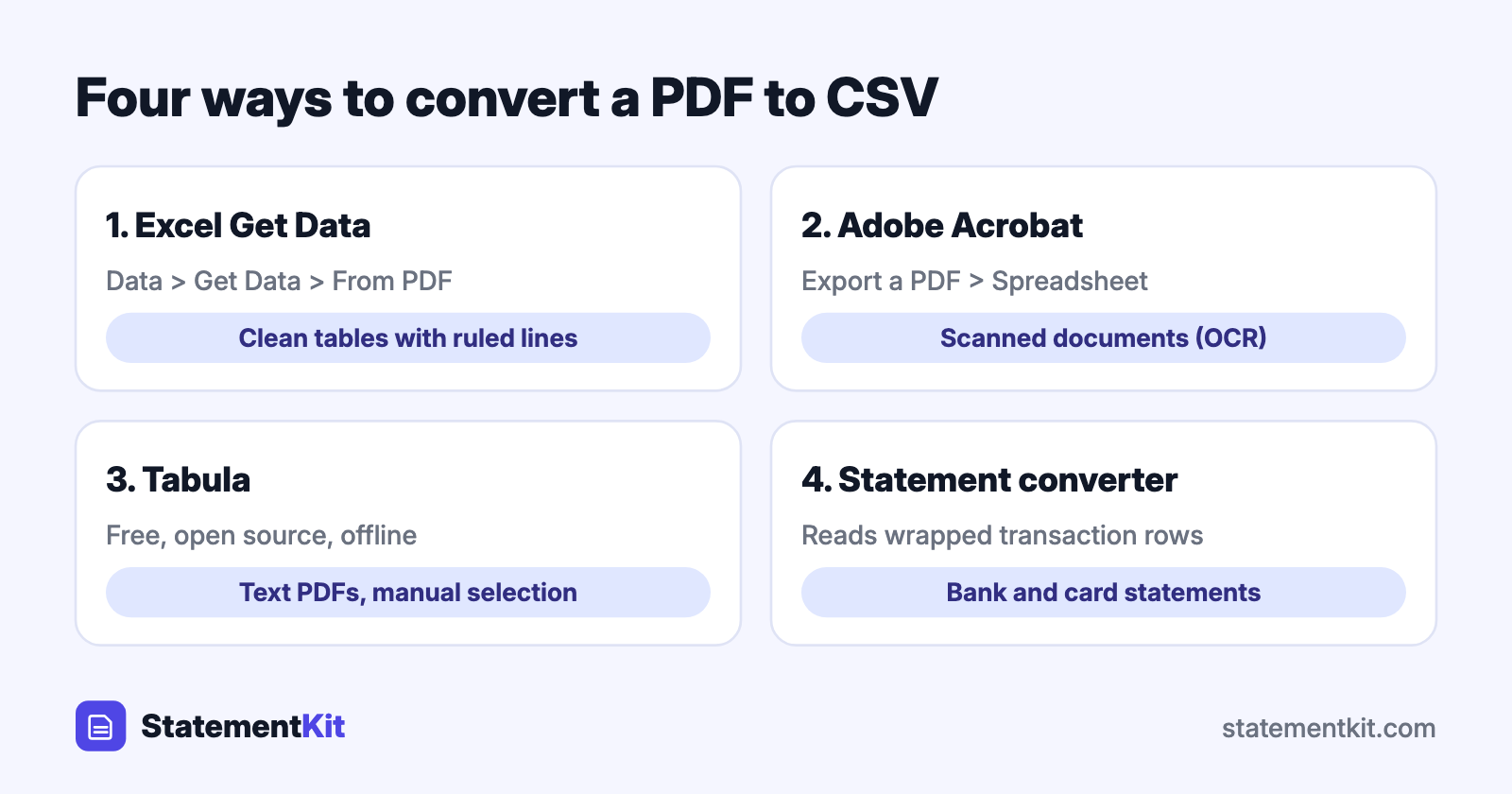
A PDF stores a page as positioned text and lines. A CSV stores a table as rows and columns. Converting one to the other means working out which pieces of text belong in the same row and the same column, and then writing them out with commas between the cells.
Four methods handle that job well. The right one depends on the software you already have and on what the PDF contains.
Before you start: check the PDF type
Open the PDF and try to select a word with your cursor.
- The text highlights. This is a text-based PDF, the kind produced by "Download" or "Export" buttons. Every method below works with it.
- The whole page selects as one image. This is a scan. It needs optical character recognition (OCR) first. Adobe Acrobat has OCR built in under Scan & OCR.
Method 1: Excel Get Data
Excel for Microsoft 365 on Windows can read tables from a PDF.
- Open a blank workbook and choose Data > Get Data > From File > From PDF.
- Select the PDF. The Navigator lists every table and page Excel detected.
- Click a table to preview it, then choose Load, or Transform Data to clean it in Power Query.
- Choose File > Save As and pick CSV UTF-8 (Comma delimited).
Works best for: clean tables with ruled lines, such as price lists and reports. Watch for: tables that span several pages arrive as separate tables that need appending in Power Query.
Method 2: Adobe Acrobat export
Acrobat Pro and Adobe’s online converter export a PDF as a spreadsheet.
- Open the PDF in Acrobat and choose Export a PDF.
- Pick Spreadsheet > Microsoft Excel Workbook and export.
- Open the workbook, remove page headers and blank rows, and save as CSV.
Works best for: scanned documents, thanks to the built-in OCR, and one-off conversions. Watch for: merged cells and columns that shift from page to page, which need tidying before the CSV is usable.
Method 3: Tabula
Tabula is a free, open-source desktop tool for Windows, Mac, and Linux, built for pulling tables out of text-based PDFs.
- Install Tabula and open it in your browser.
- Import the PDF.
- Draw a box around the table on each page, or choose Autodetect Tables.
- Choose Preview & Export Extracted Data, set the format to CSV, and export.
Works best for: free, offline conversion of text-based PDFs where you want control over the selected area. Watch for: each page needs a selection, which adds up on long documents.
Method 4: A bank statement converter
Bank and credit card statements are a special case. The transaction table has no ruled lines, descriptions wrap over two or three lines, debits and credits sit in separate columns, and the layout differs from bank to bank. General tools tend to split one transaction across several rows.
A converter built for statements reads the document the way a bookkeeper does. With StatementKit:
- Upload the statement PDF.
- Review the extracted transactions: date, description, and amount, one per row.
- Download the CSV or an Excel file.
Works best for: bank and card statements headed for accounting software or a spreadsheet. Watch for: it is designed for statements, so use the first three methods for other kinds of tables.
Which method to choose
| Your situation | Method |
|---|---|
| A report or price list, and you have Microsoft 365 on Windows | Excel Get Data |
| A scanned document | Adobe Acrobat with OCR |
| A text-based PDF, free and offline | Tabula |
| A bank or credit card statement | A statement converter |
Clean up the CSV
Whichever method you use, spend two minutes on these checks before importing the file anywhere:
- One header row. Remove repeated headers from page breaks.
- Consistent dates. Use one format in the whole column.
- Numbers as numbers. Remove currency symbols and thousands separators, and use a leading minus sign for negatives.
- Totals agree. Sum the amount column and compare it with the total on the PDF. For a statement, opening balance plus transactions should equal the closing balance.
- Encoding. Save as CSV UTF-8 so accented characters survive.
A caution for Excel users: opening a CSV by double-clicking lets Excel reformat values. Long account numbers turn into scientific notation and leading zeros disappear. Use Data > From Text/CSV and set those columns to Text.
What to do with the CSV next
Accounting software such as QuickBooks Online, Xero, and Wave imports CSV directly. For QuickBooks Desktop, convert the CSV to QBO. For other software that prefers OFX, the CSV to OFX converter handles the change.
Frequently Asked Questions
Can I convert a PDF to CSV for free?
Yes. Tabula is free and open source, Excel Get Data is included with Microsoft 365, and StatementKit’s free plan covers 3 statements a month.
Can Google Sheets open a PDF?
Google Sheets imports CSV, XLSX, and similar data files. To bring PDF content in, convert it with one of the methods above, then use File > Import.
Why does my CSV have everything in one column?
The converter read each line as a single block of text. This happens with tables that have no ruled lines. Tabula’s manual selection or a statement-specific converter resolves it.
Is it safe to upload a bank statement to a converter?
Check three things: the connection uses HTTPS, the privacy policy says how long files are kept, and the service has a way to delete your data. For files you prefer to keep on your own machine, Tabula and Excel work offline.
Have a PDF statement and need a data file?
StatementKit reads the transactions in a bank statement PDF and gives you a clean CSV or Excel file. The free plan covers 3 statements a month.
Convert Your First Statement Free