What Is an OFX File? Format, Contents, and How to Open One
An OFX file is a statement download built for software. OFX stands for Open Financial Exchange, and the file carries your account details and a list of transactions in a structure that accounting and budgeting programs read directly. When your bank offers a "Download transactions" button with choices such as Quicken, QuickBooks, or Microsoft Money, the file you receive is OFX or a close relative of it.
This guide covers what the format is, what sits inside the file, which programs open it, and how to move the data to a spreadsheet.
Where the OFX format comes from
Microsoft, Intuit, and CheckFree published the OFX specification in 1997 so that banks and personal finance software could exchange data in one shared language. The standard is still maintained and still in daily use across thousands of banks.
Two generations of the format are in circulation:
- OFX 1.x uses SGML, an older markup style where many tags have an opening tag only. Most bank downloads still arrive in this version.
- OFX 2.x uses XML, with every tag opened and closed. Software that reads OFX generally accepts both.
The file extension is .ofx. Quicken files (.qfx) and QuickBooks Web Connect files (.qbo) use the same structure with a few Intuit additions, which is why one converter can usually read all three.
What is inside an OFX file
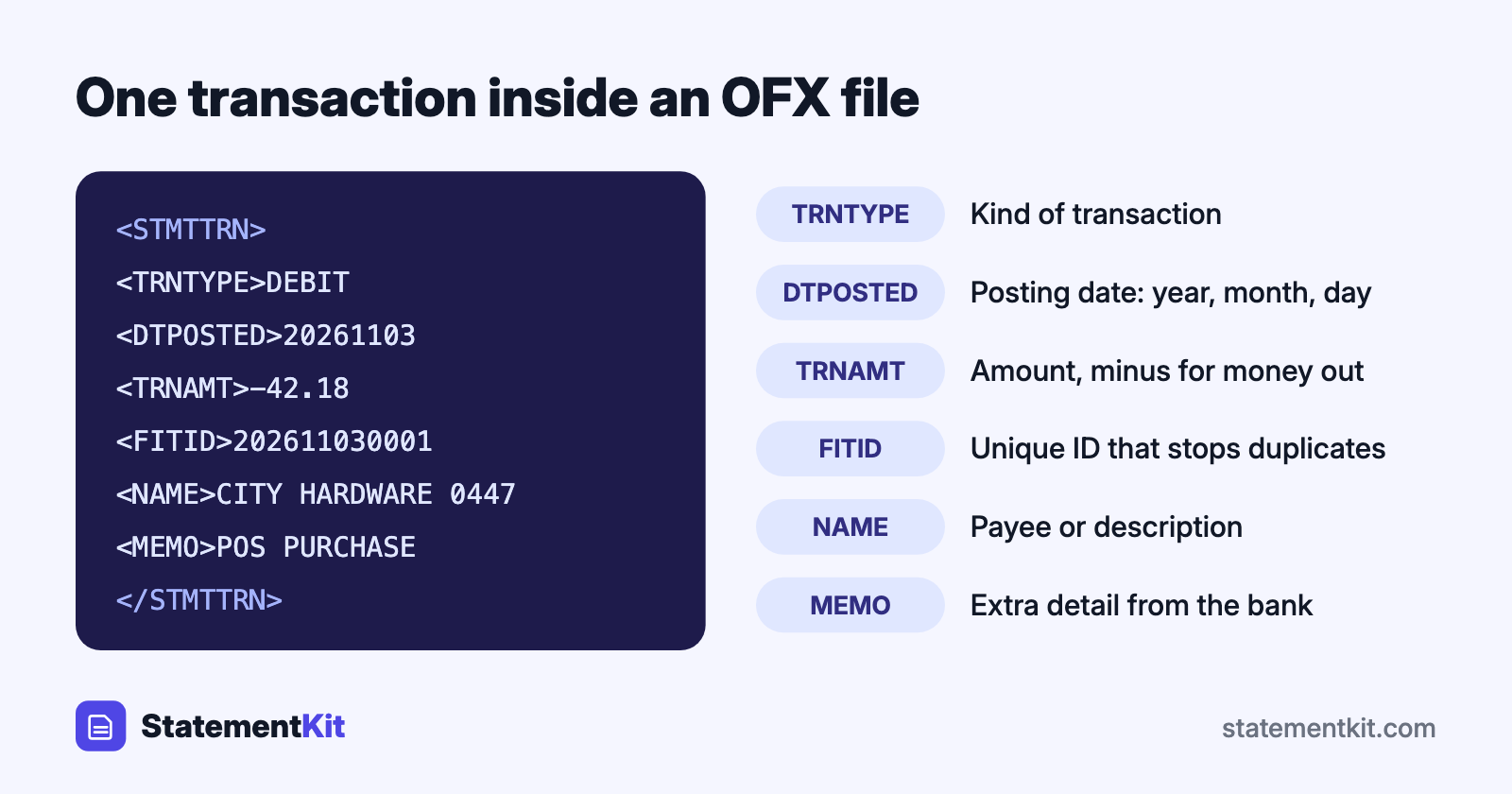
An OFX file is plain text. Open one in Notepad or TextEdit and you will see a short header followed by nested tags. Here is a single transaction from an OFX 1.x file:
<STMTTRN>
<TRNTYPE>DEBIT
<DTPOSTED>20261103
<TRNAMT>-42.18
<FITID>202611030001
<NAME>CITY HARDWARE 0447
<MEMO>POS PURCHASE
</STMTTRN>
Each tag has a fixed meaning:
| Tag | What it holds |
|---|---|
TRNTYPE |
The kind of transaction: DEBIT, CREDIT, CHECK, ATM, FEE, INT and others |
DTPOSTED |
The posting date, written as year, month, day |
TRNAMT |
The amount. Money leaving the account carries a minus sign |
FITID |
A unique ID the bank assigns to the transaction |
NAME |
The payee or description |
MEMO |
Extra detail, when the bank supplies it |
Around the transaction list, the file also records the bank routing number and account number (BANKACCTFROM), the currency (CURDEF), the date range covered, and the closing balance (LEDGERBAL).
The FITID is the feature that sets OFX apart from CSV. Because every transaction has a stable ID, accounting software recognises a transaction it has already imported and skips it. You can download overlapping date ranges and keep your books free of duplicates.
Which programs open OFX files
OFX is widely supported:
- Quicken and QuickBooks Desktop read OFX-family files through their Web Connect import.
- QuickBooks Online accepts OFX on the bank upload screen in many companies.
- Xero, Sage, Wave, and MYOB import OFX bank statements.
- GnuCash, Moneydance, and Banktivity import OFX directly.
- Microsoft Money used OFX as its native download format.
Excel and Google Sheets expect rows and columns, so they need the file converted to CSV first.
How to open an OFX file in Excel
To read an OFX file as a spreadsheet, convert it to CSV. The free OFX to CSV converter parses the file in your browser, so the statement stays on your computer, and gives you a CSV with date, description, amount, type, and transaction ID columns. Open that CSV in Excel, Numbers, or Google Sheets.
For a quick look at the raw data, a text editor works too. Right-click the file, choose "Open with", and pick Notepad on Windows or TextEdit on Mac.
How to create an OFX file
Banks usually generate OFX for you. Look for "Download", "Export", or "Download account activity" in online banking and choose the Quicken, QuickBooks, or OFX option.
When the bank only offers CSV, the CSV to OFX converter builds an OFX file from it. You map the date, description, and amount columns, and the tool writes the tags and generates a FITID for each row.
When the bank only offers PDF statements, the path has one more step: extract the transactions from the PDF to CSV with StatementKit, then convert that CSV to OFX.
OFX compared with CSV
| OFX | CSV | |
|---|---|---|
| Structure | Fixed tags defined by a standard | Columns chosen by each bank |
| Duplicate protection | Built in through FITID | Handled by the importing software |
| Account details | Included in the file | Usually absent |
| Opens in Excel | After conversion | Directly |
| Editing by hand | Possible in a text editor | Easy in any spreadsheet |
Pick OFX when the destination is accounting software that supports it. Pick CSV when you want to review, filter, or edit the data yourself.
Frequently Asked Questions
Is an OFX file safe to open?
Yes. OFX is plain text and contains data only. It does hold your account number and transaction history, so store and share it with the same care as a bank statement.
Can I convert an OFX file to PDF?
Open the file in your accounting program or convert it to CSV, open the CSV in Excel, and use Print or Save as PDF. For an official record, download the PDF statement from your bank, since that is the document lenders and tax authorities ask for.
Why does my accounting software reject an OFX file?
The usual causes are a date range with zero transactions, a file saved from an investment account that lists holdings, or a file that was edited and lost a closing tag. Downloading a fresh copy from the bank fixes most cases.
Are OFX and QFX the same thing?
They share the same structure. A QFX file is OFX with an extra Intuit bank ID that Quicken checks before importing. See what a QFX file is for the details.
Need to open an OFX file as a spreadsheet?
The free OFX to CSV converter runs in your browser and keeps the file on your computer. Drop in an OFX, QFX, or QBO file and download a CSV.
Open the OFX to CSV Converter